

Инструкции на Котлы конденсационные настенные Unical серии OSA S
Котлы конденсационные настенные Unical серии OSA S мощность 24 – 35 кВт. Руководство пользователя.
Смотрите также: Руководство по монтажу и эксплуатации → Коды ошибок: 7 кодов →
Загружаем документ…
Текст инструкции
-
cid
ae) Ufly BOX TOUCH CONTROL INSTALLATION AND SERVICING MANUAL ENGLISH
-
Description 1.1 - Reading Icons Buttons and symbol (outline + filled color area) Buttons and symbol (outline + empty color area) This service is in operation at that time Present and active service but not in operation at that time Buttons and symbol (outline in dark grey no filled area) Buttons and…
-
Display and functions description 2.1 - Display mode 6 Display mode 7 Display mode 8 Display mode Disbled Home page Menù page 2.2 - Button One page back and Button Home 4 9 One page back 10 Return always to Home page 2.3 - Display in Home page 11 INFO: see at page 26
-
2.4 - Menu Set up
< Menu 5. HEATING DHW BURNER el DEVICES < Set up Time and date > Heating > DHW > Display > Language > < Set up Heating р DHW Display Language ig ^ < Set up Password > Software infomation > WiFi configuration > Time and Date oct El +) er 2015 (=[+) >
-
Ment Set up
< Impostazioni Time and date > DHW > Display > Language > < Heating J comiot 20.0-с eo = 0c Room thermostat CH 13 Location VA AM Adjust 0 °С < Set up Time and date > Heating > Display > Language > < Set up Time and date > Heating > DHW > Language > tI < Heating ^ } Comfort 7().0 °С | Есо 5.0°c (-[+)…
-
Menù Set up
If change language, it is necessary to remove and insert RJ plug, to store changes. Set parameters Save changes 7
-
Menù Set up
Ufly APP (*) Connecting to the net (select Icon Net) 2 Wait and select the defined Net 3 Wait for connection to defined Net, access to WI-FI Password and digit. Wait for WiFi - Web The serial number (GP) is already set at the bench testing boiler link Uflybox to smartphones (Wifi device) 4 Once…
-
2.5 - Menù Device
At every boiler lighting, UFLY BOX scans devices, if new devices are recognized, such as: hcm / bcm Heating / Burner Control Manager System manager / Cascade shc Slave Heating Controller Multifunction module bmm Burner Modul Manager They are displayed on the next screen, and is prompted to save the…
-
Menù Device
BMM / HCM Parameter List of parameter in par. 4.2 instruction manual of the boiler To change the parameters is required password. Hystorical Error Clean display with Button Clear. 10
-
2.6 - Menù Heating
Selection circuit CH Change name to circuit and Save. Set Day Type Eventually rename Day 1 Day 5 example: Working day, Weekday, Festive. 11
-
Set periods
3 Time slots. Set Week Type (1) Set Week Type (2) Eventually rename Week 1 Week 3 example: Autumn, Winter, Jolly. Insert day of the week join the day (mon-fri-sat-sun) the day type Day1 Day5 Insert day of the week separately (mon-tue-wed.-thu.-fri.-sat-sun) the day type Day1 Day5. 12
-
< Menu Q
BURNER SETTING DEVICES Select circuit to show set program Standby Comfort Eco Week1 Week2 Week3 < Heating x < Chi3 Standby Time program < anus iH < chi3 ^ „57 Standby Time program Standby Time program chi3 ИУ < chi3 ^ Comfort Vy Standby Time program Time program ^ dais 0 cme \y—lpeaaion СИ о
-
Touching the icon
It shows only the details of the program in the 1-2-3 period. 14
-
Edit Parameters Heating circuit
Touching Settings icon you can change the highlighted parameter. It is required password. For other parameters you need not password. The parameters displayed are relative to the heating program. Note: - To change the heating parameters is not necessary to go in the DEVICES menu. - The psw remains…
-
Activation in Working Manual
Working Manual set the parameter Return to operation with the set program (automatic). From Home Page Is it possible View and Modify program and HEATING parameters Example Boiler in Error (Block): Reset the boiler with R button 16
-
2.7 - Menù DHW
Set Day Type Eventually rename Day 1 Day5 example: Working time, Weekday, Festive. Set periods 3 Time slots. 17
-
Set Week Type (1)
Set Week Type (2) Eventually rename Week 1 Week 3 example: Autumn, Winter, Jolly. Insert day of the week join the day (mon-fri-sat-sun) the day type Day1 Day5 Insert day of the week separately (mon-tue-wed.-thu.-fri.-sat-sun) the day type Day1 Day5. 18
-
Menu DHW
< Мепи BURNER SETTING < sanitario 12 standby programma orario “WN BR < Я } effettiva т. 0:с < DHW Eco Time program IN а 57.0°с < DHW 21 3 18| Week 2 Time Program ^ ро 57. Orc DEVICES > < > > 7" Select circuit to show set program Standby Comfort Eco Week1 Week2 Week3 < Comfort Time program а Week 1…
-
Touching the icon
It shows only the details of the program in the 1-2-3 period. Edit Parameters DHW Touching Settings icon you can change the highlighted parameter. It is required password. For other parameters you need not password. The parameters displayed are relative to the heating program. Note: - To change the…
-
Activation in Working Manual
Working Manual set the parameter Return to operation with the set program (automatic). From Home Page Is it possible View and Modify program and DHW parameters Example Boiler in Error (Block): Reset the boiler with R button 21
-
2.8 - Menu Solar
NOT ACTIVE < Мепи % |" HEATING SOLAR BURNER SETTING DEVICES 22
-
2.9 - Menù Burner
WARNING! Function reserved exclusively to authorized service centers. - Insert psw and select sweeper again 2 - Activation 3 - Choice boiler/burner avaible indicated by eg: usually 1 / MODULEX 1÷8 4 4 - Activation 23
-
Menù Burner
5 - Boiler operating with modulation max 100% 6 - Change % of modulation to the minimum 10% and select the boiler/burner 8 7 - Boiler operating with modulation min. 8 - Disable SWEEPER function. This displayed parameter are relevant to burner Note: - To change burner parameters is not necessary to…
-
Menù Burner
Manual Activation of Boiler Touching inicated Icon, you manually activate the boiler, without possibility to set the time. Reset to clear the counters. 25
-
Info
INFO Touching indicated icon, you can select the parameter to be displayed in the HOME page. eg: changed from a value Pressure to Return temp. 26
-
A B C A Touch display and at the same time disconnect the RJ cable from UFLY BOX B Always touching the screen, insert the RJ in UFLY BOX C Wait display activation D Operation Display log: every time you see the X on the display, touch with a pencil the center of the X (1 to 5) and press OK After…
-
00336311 - 1a edizione 05/16
www.unical.eu AG S.p.A. 46033 casteldario - mantova - italia - tel. +39 0376 57001 - fax +39 0376 660556 info@unical-ag.com - export@unical-ag.com - www.unical.eu Unical declines every responsibility for the possible inaccuracies if owed to errors of transcript or press. Also reserves the right to…
Схемы, таблицы и рисунки — в просмотре документа выше. Клик по номеру страницы открывает её в просмотре.
Новое в каталогах
-
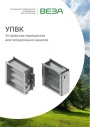
Каталог продукции Веза 2025 - Устройства перекрытия вентиляционных каналов УПВК. pdf, 1012.56 Kb
Каталог устройств перекрытия вентиляционных каналов УПВК: назначение, конструкция, технические характеристики, габаритные размеры, обозначение при заказе. -
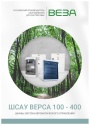
Каталог продукции Веза 2025 - Шкафы систем автоматического управления ШСАУ ВЕРСА 100 - 400. pdf, 16.08 Mb
Каталог шкафов систем автоматического управления ШСАУ ВЕРСА 100–400: назначение, функции, исполнения, схемы, технические характеристики, обозначение при заказе. -
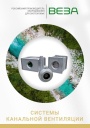
Каталог продукции Веза 2025 - Системы канальной вентиляции. pdf, 8.54 Mb
Каталог оборудования Веза для канальной вентиляции: канальные вентиляторы, нагреватели, охладители, фильтры, шумоглушители, клапаны — технические характеристики и габаритные размеры.
Новое в инструкциях
-
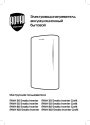
Электрические накопительные водонагреватели Royal Thermo серии Smalto Inverter. pdf, 9.20 Mb
Модели: RWH 30, 50, 80, 100 Smalto Inverter и Smalto Inverter Grafit. Инструкция пользователя: устройство, панель управления, управление с мобильного приложения, монтаж и подключение, эксплуатация, устранение неполадок, технические характеристики, габаритные размеры, гарантийный талон. -
Электрические накопительные водонагреватели Royal Thermo серии Aqua Inox Inverter. pdf, 903.59 Kb
Модели: RWH 30, 50, 80, 100 Aqua Inox Inverter. Инструкция пользователя: устройство, панель управления, управление с мобильного приложения, монтаж и подключение, эксплуатация, устранение неполадок, технические характеристики, габаритные размеры, гарантийный талон. -
Электрические конвекторы Royal Thermo серии Capella RCHC/M. pdf, 5.01 Mb
Модели: RCHC/M-500, 502, 1000, 1002, 1500, 1502, 2000, 2002. Инструкция пользователя: устройство конвектора, управление прибором, уход и обслуживание, монтаж, хранение и транспортирование, технические характеристики, гарантийный талон.