

Инструкция на Насосы для бассейнов с регулируемой скоростью и интеллектуальным управлением бассейном Hayward серии VS Omni HL32950VVSP, HL32900VSP, HL26720VSP, HL23520VSP, HL23510VSP. Руководство по эксплуатации.
Смотрите также: Руководство по установке →
Загружаем документ…
Текст инструкции
-
IMPORTANT SAFETY INSTRUCTIONS
When using this electrical equipment, basic safety precautions should always be followed, including the following: • READ AND FOLLOW ALL INSTRUCTIONS • WARNING: Disconnect all AC power during installation. • WARNING: Water in excess of 100 degrees Fahrenheit may be hazardous to your health. •…
-
Introduction
This manual assumes that the VS Omni has been installed and configured according to the Installation Manual. The VS Omni can now be programmed with user desired settings such as schedules, themes, and favorites. This manual will also explain how to manually turn pool equipment on/off, program…
-
Home Screen
When the Idle Screen is touched, the VS Omni will display the Home Screen. This screen will give the user access to all functions, settings, and configuration options. 82 71º F air º F features lights daylight alarm Power Button The power button is displayed at all times when the VS Omni is not…
-
Features Off - Features Off offers a quick way to turn off all equipment (except the filter pump and
ColorLogic lights if running because of a schedule) with a single touch of a button. Simple Mode - Simple Mode is a customizable screen that can be set up for quick access to your Favorites (page 17). You can set up only the Favorites that you want shown while in Simple Mode. Because it’s…
-
Features (left side of the Home Screen)
After selecting the desired Body of Water (if applicable), touch the left side of the screen to advance to the Features Screen. The various buttons shown in the Features Screen are related to initial configuration. For example, if you configured a heat pump to heat the pool, then the heater settings…
-
Save - Touch this button to save your selection
Cancel - Touch this button to cancel your selection. Advance - Touch this button to advance to the next screen. Back - Touch this button to return to the previous screen. Add - Touch this button to add an item. Delete - Touch this button to delete a highlighted item. Turn On or Enable - This button…
-
Note that the following examples will be shown for the Pool only. All of the equipment shown in
the Features Screens will have been initially configured in the Configuration Wizard to operate with a Pool body of water. You may have configured the VS Omni to share equipment with the Spa in which case the equipment will be shown in the Features Screen for both the Pool and Spa. Control Screens…
-
Add a Schedule
If the “Set Schedule” button is touched, you’ll be brought to the pump schedule screen below. Here you can add, delete, edit, enable, and disable schedules. Because there have been no schedules set up, the screen is blank. Touch the Add button (+) to add a schedule for the pool pump. ON/OFF start…
-
Set Pump Speed
Refer to the screen below to select the pump speed during the schedule. If custom is selected, you’ll be asked to set the % pump speed or RPM depending on the setting. When finished, touch the Save button to save the schedule. NOTE: the speed setting only appears if the pump is a variable speed or a…
-
Turning a Schedule Off
There may be circumstances when you will want to turn off a schedule temporarily. To do this, slide the On/Off button to “Off”. The schedule will remain off until you go back to this screen and turn it off. 01 med 10:00 am / 7:00 pm all week OFF POOL vsp pump Deleting a Schedule Schedules can be…
-
Countdown Timer
A countdown timer runs or enables equipment for the amount of time specified. You can initiate the countdown timer at the equipment’s control screen. At the countdown screen, set the desired countdown time. In this case, the timer will run the pump for the specified countdown time. If the equipment…
-
Enable / Disable Slide this switch to
enable and disable the heater. The setting will not take effect until the Save button is touched. To turn on the heater, adjust the setpoint higher than the actual water temperature and then save. Status of Equipment - When grayed out and stationary, equipment is currently idle. When in motion, the…
-
Prioritize
Select Source 1 2 Prioritize Select Source POOL heater Enable and Disable Heaters - When “Select Source” is highlighted, touching a heater button will enable and disable that heater. A grayed out heater is disabled. 1 POOL Prioritize Select Source solar Select Source solar set temperature ON 85 F…
-
Turn on / Turn off - Slide this switch to
manually turn on/off the ColorLogic lights. This will override schedules or timer settings. Set Schedule Touch this button to set a schedule for the ColorLogic Lights. 1/2 ON Selections - Select the desired light show or solid color. Twilight Gemstone Countdown Timer Touch this button to set a…
-
Cleaners
You can turn the cleaner on/off, set schedules, and set countdown timers at the Cleaner Control Screen shown below. You can also set pump speed if a two speed or variable speed pump has been configured to be used with the cleaner. ON vsp heater uclights schedule ON cleaner POOL cleaner POOL features…
-
Schedule
The Schedule button appears on the Features Screen regardless of what equipment has been configured in the Configuration Wizard. It offers a convenient way to create and edit schedules. Any equipment that has been configured and has an option for schedules, will be shown in the Schedule Control…
-
Favorites
Favorites can be found on the right side of the Home Screen and offer control for equipment. Favorites are also used to control equipment that has been configured for the “Backyard”. Favorites offer quick easy access to frequently used functions and most Favorites can be added to Simple Mode (page…
-
Edit Features/Lights/Heaters
When a feature, light, or backyard accessory is selected, you’ll advance to the related Control Screen. ON ON select POOL jets jets select all bodies FEATURES pool FEATURES 82 º F 71º F air features lights daylight alarm Favorites Screen All of the buttons on the right side of the Home Screen are…
-
Add to Simple Mode - Touch this
button to add a favorite to Simple Mode. Add Favorite - Touch this button to add a favorite. S Current Favorites These are favorites that have already been added. You can change the location of where they appear on the Home Screen. S vsp S S deck lights jets MANAGE favorites Creating Favorites…
-
Moving Favorites
Favorites will be displayed on the Home Screen in the order that they are shown on the Favorites Screen, from left to right. The default Favorites cannot be moved. To move Favorites, follow the procedure below. S vsp heater jets deck lights S MANAGE favorites vsp S jets deck lights heater MANAGE…
-
Adding Favorites to Simple Mode
For more information on Simple Mode, refer to page 30. Note that most Favorites can be added to Simple Mode but not all. Follow the procedure below. Note: If the Favorite has been added to Simple Mode, moving the button location on the Favorites screen will affect its position on the Simple Mode…
-
Themes
Themes allow you to execute many pool functions with just one button. This can be handy for functions that require interaction with various pool equipment. For example, spending an evening in the spa might require you to turn on the spa jets, set the heater to 104ºF, and turn on the spa lighting.…
-
Select an Icon - Touching this button will bring
you to an icon selection screen. Touch the advance button to access more icons. Selecting and saving the icon will bring you back to this screen. Add the Theme to Favorites - Touching this button will toggle the selection from Yes to No. Select whether you want the new Theme to be added to…
-
Stopping a Theme
If a Favorite was created for the Theme, stop the Theme just as you would any other Favorite. To stop a Theme within the “Manage Themes” screen, follow the procedure below. Note that when stopping a Theme, all functions will turn off and the filter pump will return to any schedules that have been…
-
Pad while logging. The location of the USB port is shown in the Installation Manual
Config Wizard The Configuration Wizard is used to add, remove, and configure pool equipment that is controlled by the VS Omni. Configuration should have already been completed at installation and should not be necessary unless a change has been made to the system. If a new configuration is saved, it…
-
Display
The Display Settings screen offers options to customize the way the VS Omni displays information. 1/2 config wizard display system info network backup config date/time restore config language 12h ºF vs% SYSTEM configuration DISPLAY settings 12/24 hour format - Toggles between 12 hour and 24 hour…
-
Restore Defaults - this will return the data log settings to the factory default
Set Level - you can change the amount of detail that is shown in the log file with this button. You can also enable or disable data logging using the On/Off toggle. Upgrade Additional functions, features, and languages may be available for your VS Omni. Determine if Firmware Upgrade is Available The…
-
Upgrading Firmware (must be in Service Mode, page 3)
1. 2. 3. 4. 5. 6. 7. 8. Insert your USB thumb drive into your computer. Go to www.hayward.com/firmware. Click on the link to download the latest firmware and save to the USB thumb drive. Remove the USB thumb drive from the computer. Locate the port on the underside of the VS Omni Control Pad and…
-
11. Touch Save to begin the upgrade. After the upgrade is finished, touch Save to restart
ready to upgrade component success ready to restart firmware file MSP MSP_AR_BO140017 component firmware file MSP MSP_AR_BO140017 0% 100% UPGRADE firmware UPGRADE firmware 12. After the VS Omni has restarted, exit Service Mode and resume operation. Installing a New Language (must be in Service Mode…
-
10. The VS Omni will now look at your USB thumb drive. Select the language file that was saved
from the website and then touch the Save button. select file ...\ ...\ select file USB/ USB/ MSP_RS_R1.4.0-FR MSP_RS_R1.4.0-FR FILE selection FILE selection 11. Touch Save to begin upgrade. After the upgrade is finished, touch Save. ready to upgrade component success ready to restart firmware file…
-
Simple Mode Screen
Status - Items that are highlighted are active or “On”. In this example, the VSP pump and heater are both On. Touching buttons in Simple Mode will turn the items On or Off. heating vsp daylight cleaner Schedule Indicator Favorites that have been configured to operate on a schedule will display this…
-
Exit Simple Mode
To exit Simple Mode, follow the procedure below. . 0 ENTER password service mode shut down heating vsp daylight cleaner features off standard mode 71º F air 32 USE ONLY HAYWARD GENUINE REPLACEMENT PARTS
-
Web Enabled Control
The VS Omni should have already been configured for use with the home’s router to allow for remote control through the web. This procedure is covered in the Configuration Wizard information found in the Installation manual. After configuration, an account must be created to allow access to the VS…
-
Hayward® TriStar VS 950 Omni Limited Warranty
To Buyer, as original purchaser of this equipment, Hayward Pool Products, Inc. warrants this product to be free from defects in materials and workmanship for a period of FOUR (4) years from the date of purchase. Parts which fail or become defective during the warranty period, except as a result of…
-
For further information or consumer
technical support, visit our website at www.hayward.com Hayward is a registered trademark and Pro Logic is a trademark of Hayward Industries, Inc. © 2017 Hayward Industries, Inc. All other trademarks not owned by Hayward are the property of their respective owners. Hayward is not in any way…
Схемы, таблицы и рисунки — в просмотре документа выше. Клик по номеру страницы открывает её в просмотре.
Новое в каталогах
-
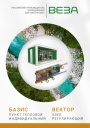
Каталог продукции Веза 2025 - Пункт тепловой индивидуальный БАЗИС, узел регулирующий ВЕКТОР. pdf, 8.85 Mb
Каталог индивидуальных тепловых пунктов БАЗИС, узлов регулирующих ВЕКТОР и блочных тепловых пунктов: назначение, схемы, комплектация, технические характеристики, габаритные размеры. -

Каталог продукции Веза 2024 - Регуляторы переменного расхода воздуха РЕГ-СМАРТ для VAV-систем. pdf, 1.83 Mb
Каталог регуляторов переменного расхода воздуха РЕГ-СМАРТ для VAV-систем: назначение, конструкция, исполнения, технические характеристики, габаритные размеры, обозначение при заказе. -
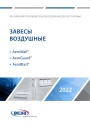
Каталог продукции Веза 2025 - Воздушные завесы. pdf, 4.97 Mb
Каталог воздушных завес Веза AeroWall, AeroGuard, AeroBlast: назначение, конструкция и исполнения, технические характеристики, габаритные размеры, подбор.
Новое в инструкциях
-
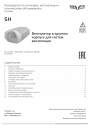
Вентиляторы в круглом корпусе Shuft серии SH. pdf, 646.47 Kb
Модели: SH 160, 200, 250, 315, 400. Руководство по установке, эксплуатации и техническому обслуживанию: технические характеристики, размеры, монтаж, электрические подключения, ввод в эксплуатацию, обслуживание и чистка, устранение неисправностей. -
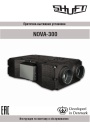
Приточно-вытяжные установки Shuft серии NOVA. pdf, 4.29 Mb
Модель NOVA-300. Инструкция по монтажу и обслуживанию: принципиальная схема установки, массогабаритные показатели, монтаж воздуховодов и дренажа, подключение электропитания, схема электрических соединений, пусконаладка, обслуживание, неисправности, подключение к системе диспетчеризации. -
Компактные приточно-вытяжные установки Shuft серии UniMAX-P CE-A. pdf, 8.10 Mb
Модели: UniMAX-P 450 CE-A, 800 CE-A, 1000 CE-A, 1500 CE-A. Руководство по монтажу и эксплуатации подвесных установок с пластинчатым рекуператором и электронагревателем: характеристики, монтаж, схемы подключений, пусконаладка, пульт управления, техническое обслуживание, неисправности.